
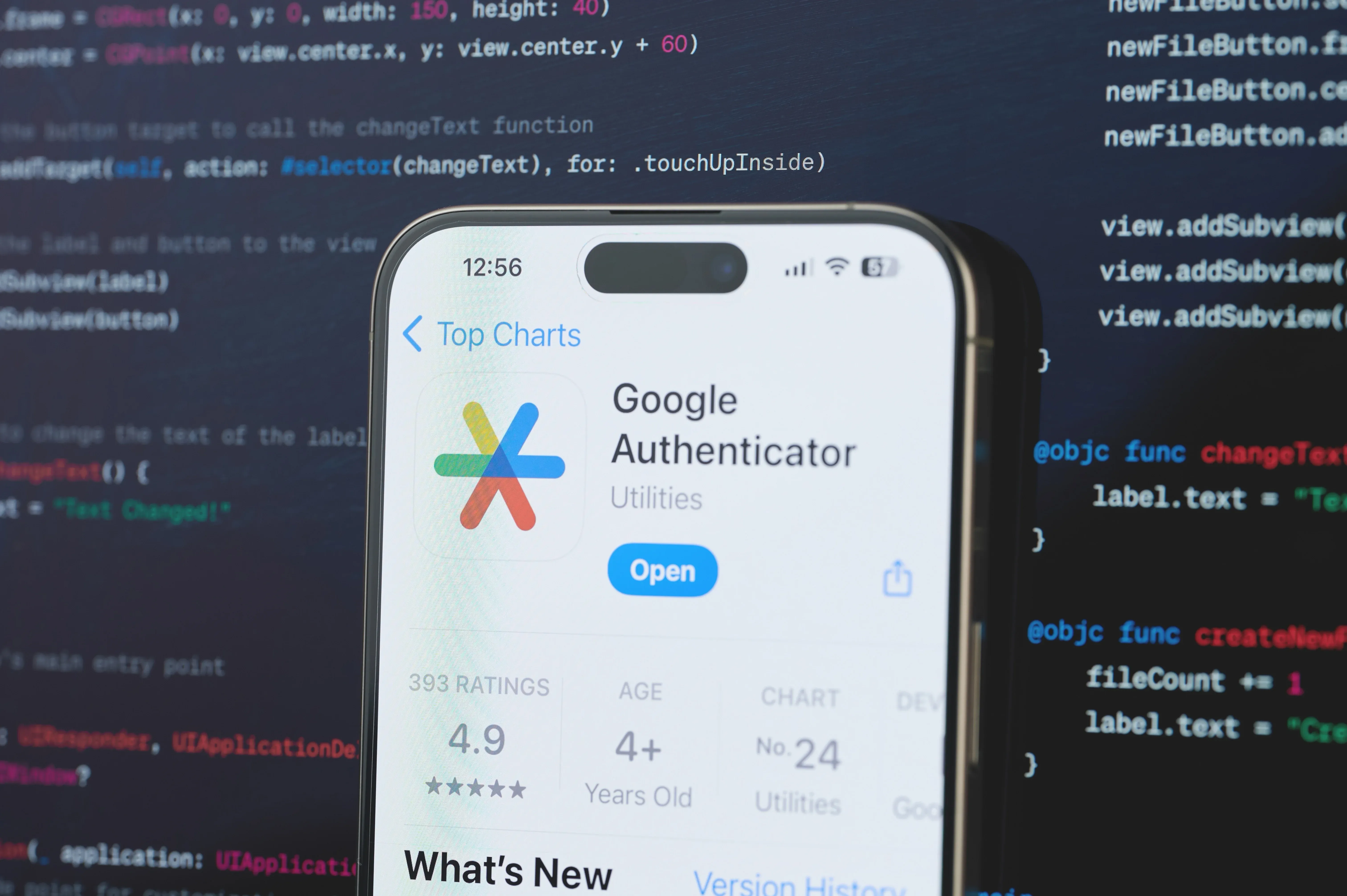
Google Authenticator Setup for Google Workspace
Follow our step-by-step guide to add Google Authenticator as a second factor for your Google Workspace account.
Google Authenticator Setup Instructions
Choose Your Platform
Scan to Download
Google Authenticator on Google Play Store
Install Google Authenticator
On your Android phone, open Google Play Store, search for "Google Authenticator" by Google LLC, and install the app.
Open the app and accept prompts
Launch Google Authenticator and accept the terms. Allow camera access so you can scan QR codes from your Google Workspace account.
Sign in to your Google Workspace account on a computer
On a desktop browser, sign in to your Google Workspace account, go to Security → 2-Step Verification, and choose "Authenticator app" as your second step.
Scan the QR code with your phone
On the computer, choose Android as your device type and display the QR code. In Google Authenticator, tap the + icon → "Scan a QR code" and scan the code on your screen.
Enter the verification code
Type the 6-digit code from Google Authenticator back into the 2-Step Verification setup page to confirm the connection.
Use codes for future sign-ins
Going forward, when prompted for a verification code, open Google Authenticator and enter the current 6-digit code for your work account.
Tip: For most organizations we recommend enforcing 2-Step Verification for all Google Workspace users and requiring an authenticator app instead of SMS where possible.
Why Google Authenticator helps protect Google Workspace
Google Authenticator adds a one-time code on top of your Google Workspace password, blocking most automated credential attacks. When combined with 2-Step Verification policies, context-aware access, and security alerts, it gives your organization a straightforward path to stronger account security with minimal user training.
Stronger two-factor authentication for everyday users
With 2-Step Verification turned on, attackers can no longer sign in with only a stolen password. Each login requires a time-based code from Google Authenticator, which changes every 30 seconds and cannot be reused. This dramatically reduces account takeovers from password reuse and phishing.
Designed to work with Google Workspace security policies
Admins can combine authenticator codes with sign-in restrictions like device management, IP-based rules, or context-aware access. That means high-risk sign-ins can require 2-Step Verification every time, while routine access stays smooth for trusted users and devices.
- Require 2-Step Verification for all users or key organizational units.
- Enforce app-based codes instead of SMS where feasible for better phishing resistance.
- Use admin reports to verify adoption and identify users who still need to enroll.
Plan a clean rollout for your team
A successful rollout starts with a pilot group, clear user communications, and a fallback plan for lost phones. We help you design instructions like this page, coordinate enrollment windows, and capture recovery options so your help desk is ready on day one.
Our team can also review your existing Google Workspace security posture and recommend where app-based 2FA, passkeys, or hardware security keys make the most sense for your organization.
Get help rolling out 2-Step Verification
Meet with an NTS engineer to plan your Google Workspace 2-Step Verification rollout, align policies with your compliance requirements, and give your users a simple, secure experience with Google Authenticator.
Partner with NTS to Lift Your Microsoft Secure Score
If you're ready to modernize authentication with Microsoft Authenticator and passwordless sign-in, our team can design the policies, user rollout, and reporting plan that raise your Secure Score with minimal disruption.
Or share a few details below and our Microsoft identity team will schedule time to map your path to higher Secure Scores.