
How to Set Up a Microsoft 365 Passkey Before SMS MFA Ends
What’s Happening
Microsoft is making passkeys the default authentication experience for Microsoft work accounts and retiring Microsoft-provided delivery of verification codes by text message and automated phone call.
A passkey replaces SMS or voice as your multifactor authentication method and may also provide a passwordless sign-in experience. Instead of typing a six-digit code, you confirm the sign-in with the fingerprint, face, or PIN associated with the device or credential manager holding your passkey.
What you need to do: set up a passkey on your work computer. It takes about five minutes, and you can do it before you are ever prompted.
What Happens When
September 1, 2026: Users enabled for SMS or voice are automatically enabled for passkeys. After an in-scope user signs in and completes MFA, Microsoft’s registration campaign can prompt them to register a passkey. The prompt allows unlimited snoozes by default, but completing setup promptly will help avoid sign-in problems.
February 1, 2027: Microsoft-provided SMS and voice delivery is retired. If SMS or voice is your only available MFA method and your organization has not configured a customer-managed telecom provider, passkey registration becomes mandatory and you can’t continue signing in until you complete it.
Organizations with a documented regulatory or operational need for SMS or voice can evaluate a customer-managed telecom provider through the Microsoft Security Store. Contact Network Thinking Solutions well before the retirement date if this applies to your organization.
Set it up now: Set up a passkey on your work computer now rather than waiting for a prompt to interrupt you. It takes about five minutes. Start at https://aka.ms/mysecurityinfo.
For Microsoft 365 Administrators
The automatic September rollout applies to users enabled for SMS or voice in the Entra Authentication Methods Policy or in legacy MFA settings.
Microsoft recommends identifying active SMS and voice users, enabling passkeys in the authentication methods policy, and using a targeted registration campaign to drive adoption before February 1, 2027.
A temporary opt-out can delay automatic passkey enablement and the registration campaign between September 1, 2026 and February 1, 2027. It does not opt the tenant out of the February 1 enforcement deadline.
For current tenant-planning details, see https://learn.microsoft.com/en-us/entra/identity/authentication/concept-sms-voice-retirement or contact Network Thinking Solutions.
What the Prompt Looks Like
The prompt appears right after you sign in. Select Next to set up your passkey.
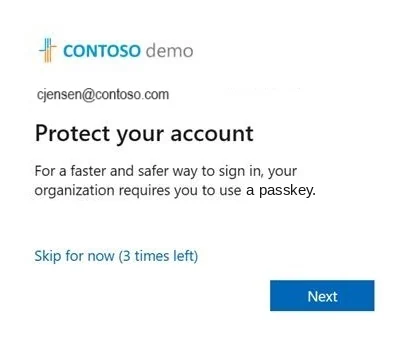
You can snooze the prompt and return to it later. Microsoft allows unlimited snoozes by default, but finish setup as soon as you can to avoid sign-in problems.
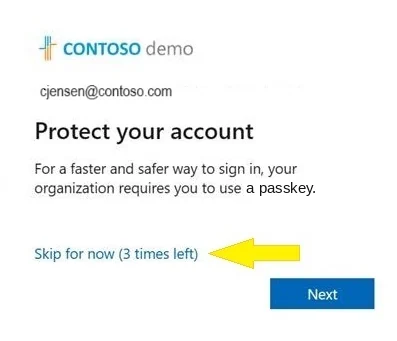
You don’t have to wait for the prompt—you can set up a passkey at any time.
Choose Where to Keep Your Passkey
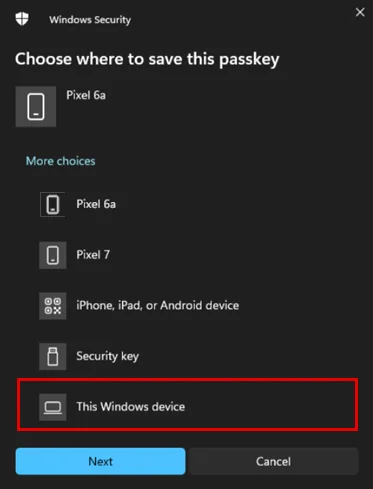
Your work computer: Recommended. This is the quickest option, works on both Windows PCs and Macs, and takes about two minutes.
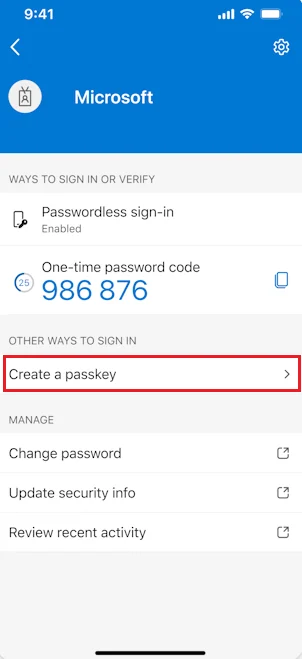
Your phone: Use the Microsoft Authenticator app if you would rather not use your computer or you want a second passkey. This requires iOS 17 or later or Android 14 or later.
A password manager: If you already use a password manager that supports passkeys, it can hold this one too.
Microsoft supports synced passkeys stored in a platform credential manager, such as iCloud Keychain or Google Password Manager, and device-bound passkeys, such as Microsoft Authenticator, Entra Passkey on Windows, and FIDO2 hardware security keys.
You may already use a phishing-resistant method: Windows Hello for Business and other phishing-resistant Entra authentication methods remain supported. However, using a fingerprint, face, or PIN merely to unlock a computer does not automatically mean that an Entra passkey is registered. Users who remain enabled for SMS or voice may still receive the passkey-registration prompt on eligible devices.
Option 1: Your Work Computer (Recommended)
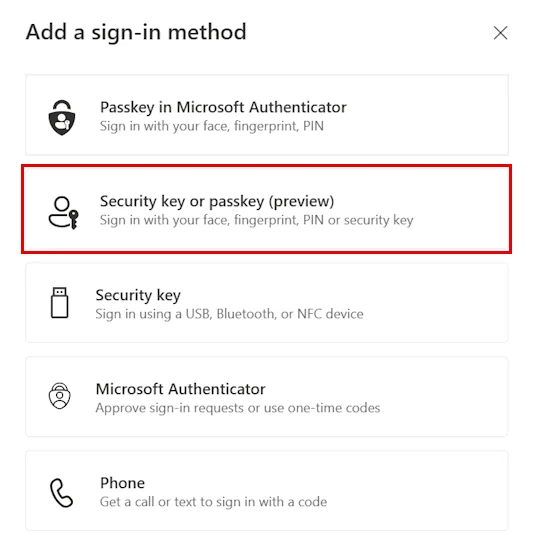
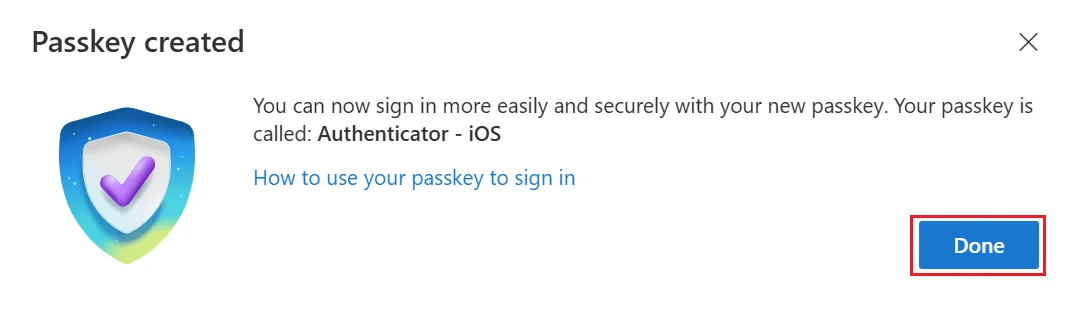
These steps work the same way on Windows PCs and Macs. You’ll need the fingerprint, face recognition, or PIN you already use to unlock the machine.
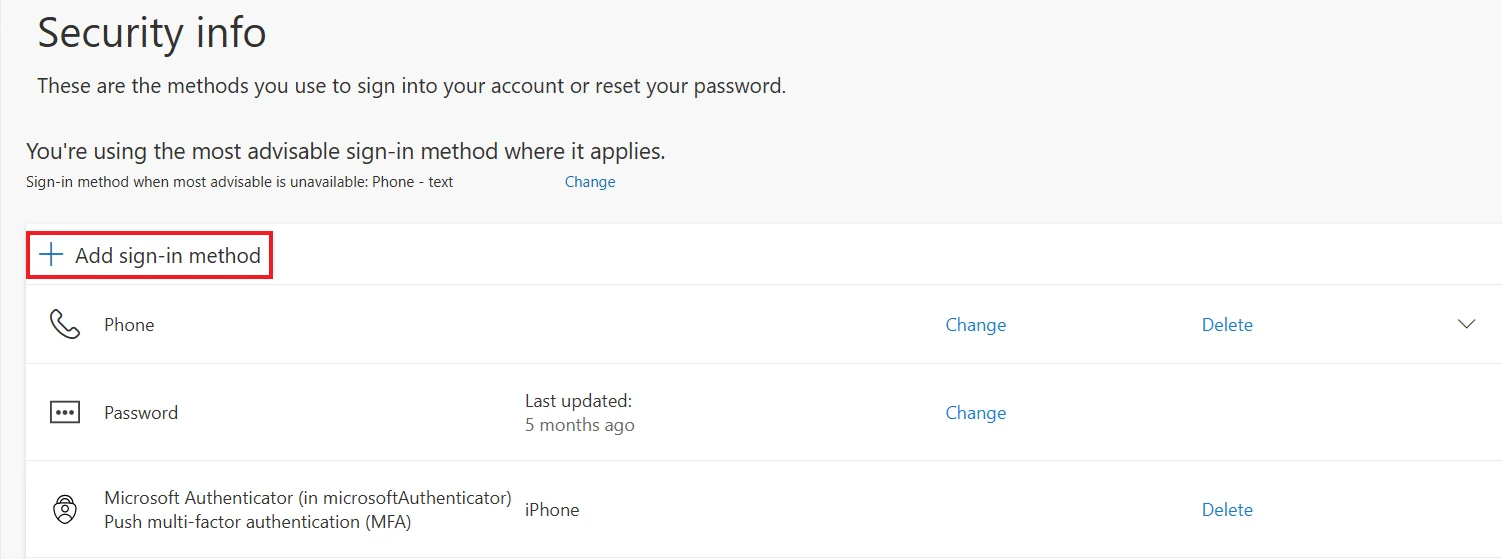
Note: Don’t pick Passkey in Microsoft Authenticator. That option puts the passkey on your phone instead of this computer.
Windows and Mac: What Differs
On a Windows PC, the passkey stays on that PC. If you regularly use more than one computer, set one up on each or add one on your phone so it travels with you.
On a Mac, the steps are identical. At step 2, save the passkey to your Mac and confirm with Touch ID. It goes into your iCloud Keychain, so it also works on your iPhone and iPad.
If setup fails on a Windows PC, you may already have a passkey for this account on that machine, which usually means you are already covered there. Check with Network Thinking Solutions if you are unsure.
Option 2: Your Phone (iPhone or iPad)
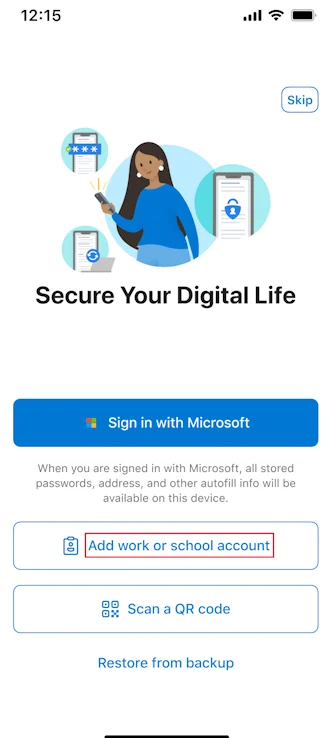
Use this option if you would rather not put a passkey on your work computer or you want a second one that travels with you. It requires iOS 17 or later.
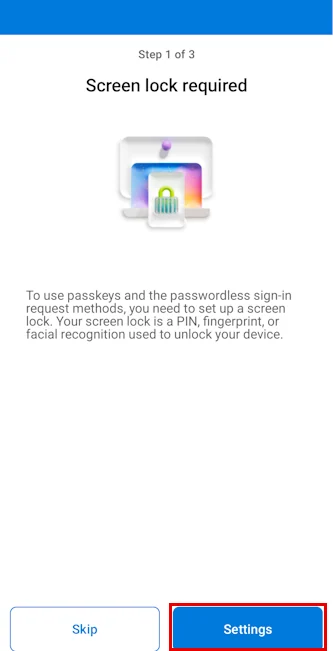
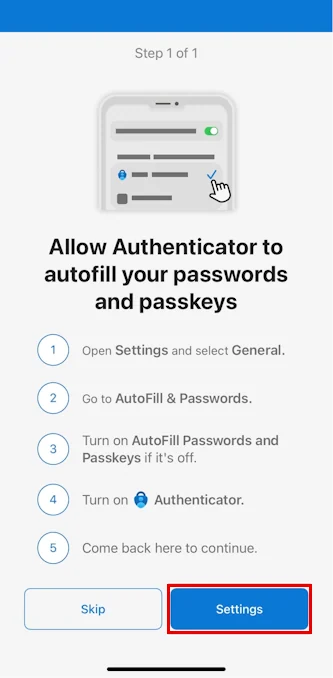
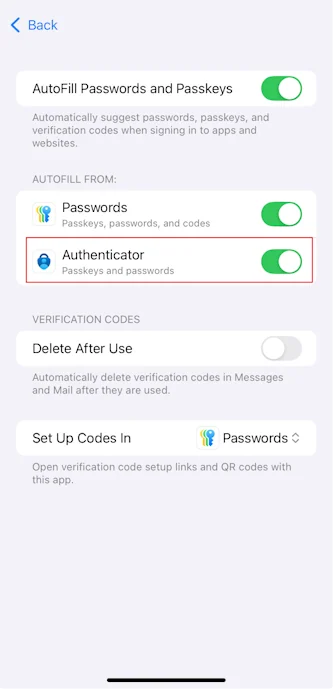
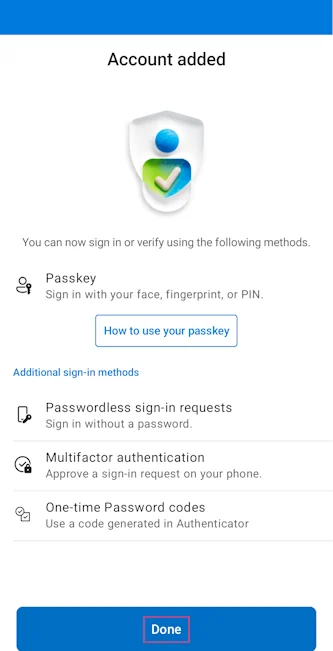
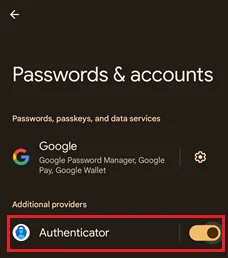
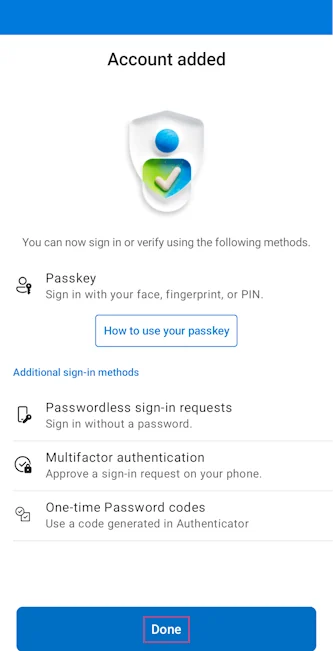
Option 3: Your Phone (Android)
This option requires Android 14 or later.
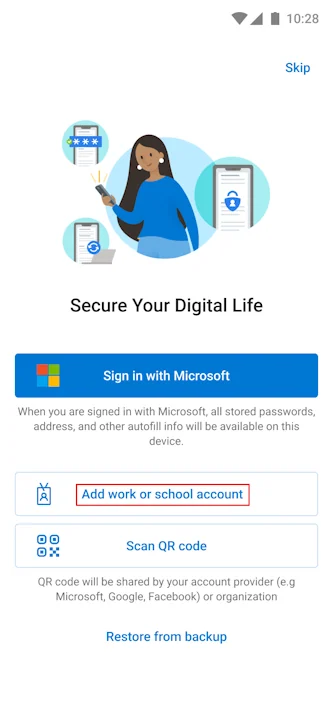
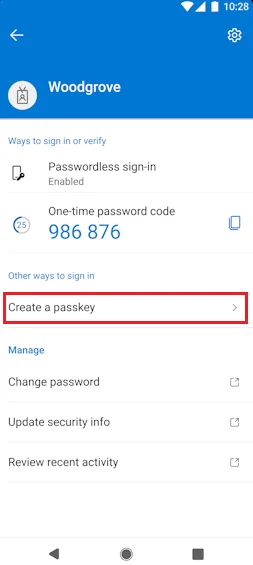
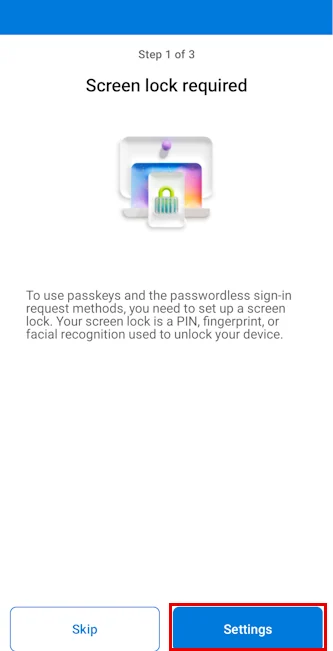
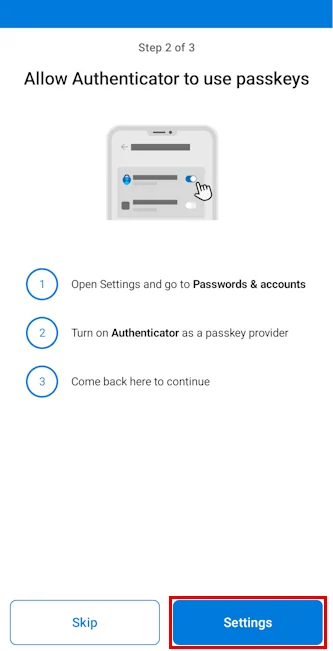
Note: Menus vary by phone maker. Search your settings for passkey if you can’t find it.
Option 4: A Password Manager You Already Use
If you already use a password manager that supports passkeys—such as iCloud Keychain, Google Password Manager, 1Password, Bitwarden, or Dashlane—it can hold this passkey too. The passkey is then available on every device where you are signed in to that manager.
Follow the same steps as the work-computer route above. At step 2, when you are asked where to save the passkey, pick your password manager instead of the computer, then unlock it when prompted.
Check with Network Thinking Solutions first if you are not sure whether your password manager is approved for work accounts. Some organizations restrict which password managers can hold work credentials.
Signing In Afterward
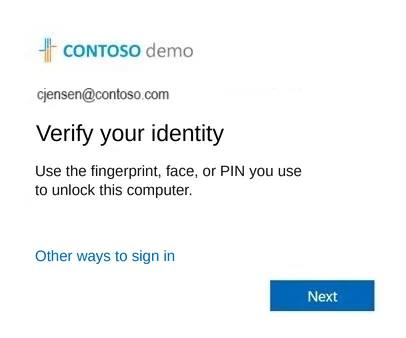
This is what you’ll see in place of typing a code. Confirm the same way you unlock your computer and you’re in.
One safety habit: A real passkey prompt only appears because you just tried to sign in. If you are asked to approve a sign-in you didn’t start, decline it and contact Network Thinking Solutions. It may mean someone else has your password.
Common Questions
Can I keep using text messages or voice calls? Microsoft-provided SMS and voice delivery ends on February 1, 2027. Organizations with a documented business, regulatory, or operational requirement may be able to configure a customer-managed telecom provider through the Microsoft Security Store. Contact Network Thinking Solutions well before the deadline to evaluate this option.
Do I still need my password? For now, yes. You’ll use your password in some places and your passkey to verify. Over time, more sign-ins will need only the passkey.
I set one up, so why am I prompted again on a different computer? The prompt is based on the device and browser you are using, not just your account. A passkey saved to one PC does not apply on another. A passkey on your phone or in a password manager that syncs covers the most situations.
What if I lose the device my passkey is on or get a new one? Contact Network Thinking Solutions to remove the old passkey and register a new one. If you are replacing a device, set up the passkey on the new one before wiping the old. This is why registering a second passkey somewhere else is worth the extra two minutes.
Can I have more than one passkey? Yes, and it is recommended. One on your computer and one on your phone means a lost or forgotten device does not leave you locked out.