
Adobe Acrobat Device Activation Limit: How to Sign In Again
What This Message Means
Acrobat may display a device activation limit warning followed by a request to sign out of another device. Your current computer is shown as not activated, and Continue may be unavailable until you free a slot.
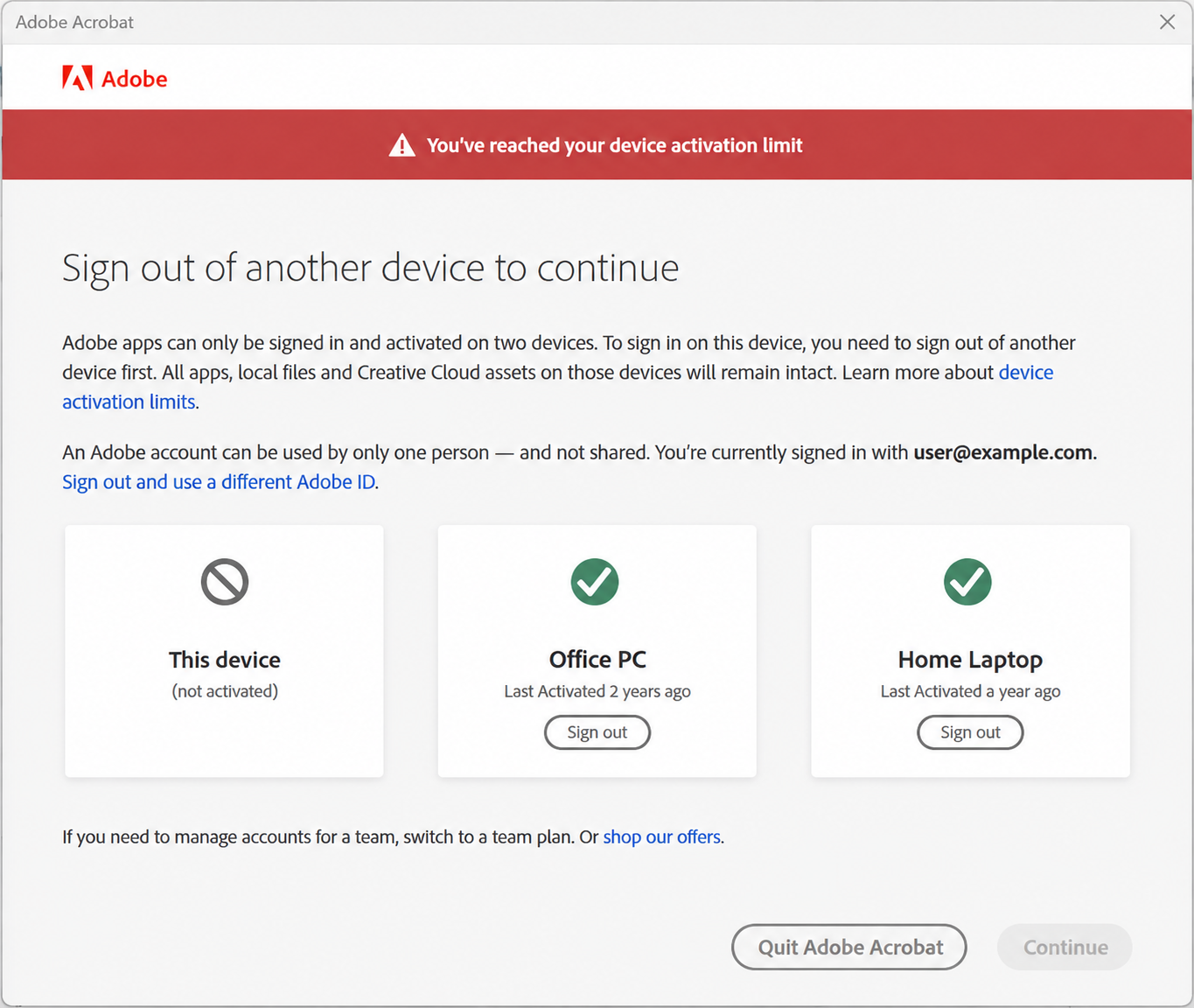
Illustrative screenshot edited for privacy: the email and device names are examples, and the background document has been removed.
For the subscription sign-in flow shown here, Adobe permits two activated computers per user account, with apps actively used on one computer at a time. A third computer needs a slot freed first. See Adobe's device policy: https://helpx.adobe.com/download-install/apps/licensing-activation/activate-deactivate-apps/install-apps-number-of-computers.html
A common scenario is moving to a replacement computer while the old desktop and laptop remain activated. An old activation can remain even when you no longer use that computer. This message concerns the Adobe account's activations; it does not indicate that the PDF is damaged.
This guide covers the subscription dialog pictured above. Older serial-number editions and organization-managed deployments may use different activation procedures.
Fix It from the Activation Window
Source: Adobe's activation-window instructions: https://helpx.adobe.com/download-install/apps/troubleshoot/licensing-activation-issues/device-activation-limit-reached.html
Signing out leaves installed apps and local files in place, as the dialog explains. The other computer will need to sign in again to use licensed Adobe apps, and sign-out can affect other Adobe apps on that device.
If the Old Computer Is Unavailable
Use the online alternative if the computer was replaced, lost, or is no longer accessible.
Adobe documents this remote deactivation option in its activation-limit guide linked above.
If You Still Have the Old Computer
You can also deactivate directly on that computer. Save your work, connect it to the internet, and open Acrobat. On Windows, select Menu > Help > Sign out; older layouts may show Help > Sign out directly. On macOS, select Help > Sign out. Confirm, then return to the new computer and sign in.
Sign-out deactivates the Adobe apps on that computer and may sign you out of other Adobe applications there. See Adobe's deactivation instructions: https://helpx.adobe.com/download-install/apps/licensing-activation/activate-deactivate-apps/deactivate-adobe-app.html
If Continue Stays Disabled or the Warning Returns
Adobe's Acrobat-specific activation checks: https://helpx.adobe.com/acrobat/kb/troubleshoot-activation.html
If the issue persists, contact NTS Support with the exact error, Acrobat version, the affected computer, and the steps already tried. Send account details through your normal private support channel and redact personal information from screenshots. Never send your password or verification codes.
Confirm the Fix and Prevent a Repeat
The fix is complete when the activation warning disappears and your licensed Acrobat tools work on the current computer. Open a test PDF and try the feature you originally needed.
Before retiring or replacing a computer, sign out of Adobe while it is still available. Keep activations on the two computers you actually use. Each person should use their own assigned Adobe account; do not share an Adobe ID to work around the limit.