
Sage 100: How to Resolve the User Limit Exceeded Error
Recognize the Error
When opening Sage 100, you may see a dialog titled Connection Rejected with the message User Limit exceeded.
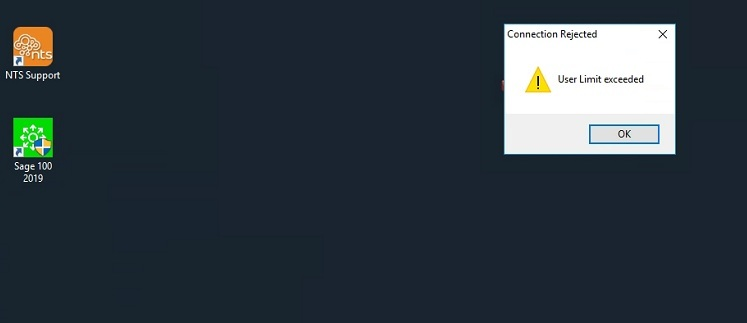
The connection cannot obtain an available user slot. The licensed seats may genuinely be in use, or a disconnected or hung session may still be holding one. A service restart is a recovery step for suspected stale sessions; it does not increase the licensed user count.
This procedure is based on a Sage100cloud Premium 2019 installation running its application server as a Windows service. Service names vary by version and installation. Have IT confirm the correct service before proceeding; Sage 100 Standard and installations running the application server as an application require a different procedure.
Before Restarting: Coordinate with Users
The remaining steps require server administrator access. If you are an end user, ask IT or NTS Support to perform them.
Connect to the Sage Application Server
services.mscRestart the Correct Sage Service
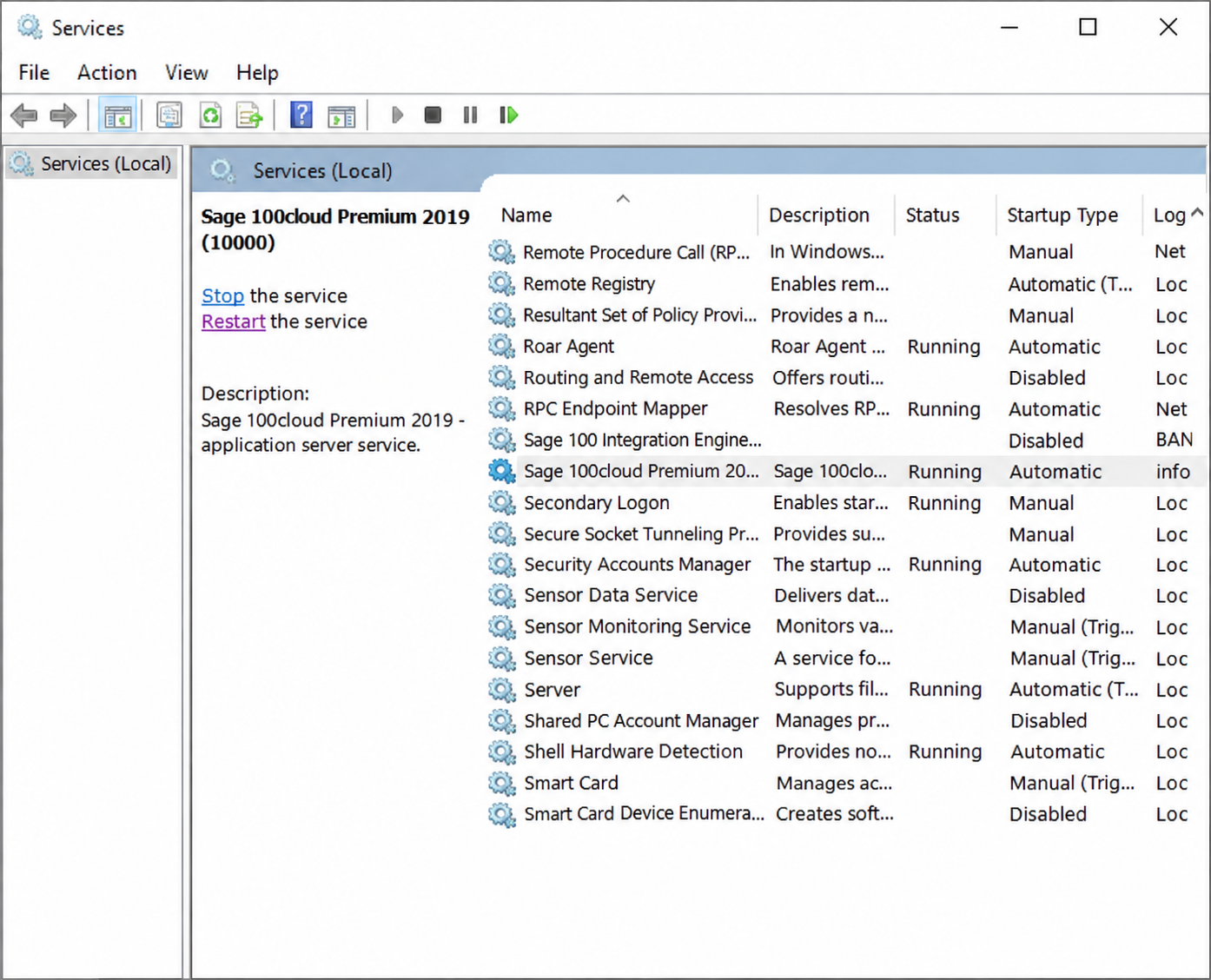
Illustration edited from the support screenshot for privacy. Remote session details, staff information, and surrounding server information are excluded.
Verify the Fix
If the message returns, investigate session usage and licensing rather than treating recurring restarts as a permanent fix.
If the Error Persists
Contact NTS Support or your Sage partner with the exact error text, Sage edition and version, whether one or multiple users are affected, and the steps already tried. Include the service name, restart time, whether it returned to Running, and the result of the sign-in test through your private support channel.
If the message also says No valid activation found, or the available user count differs from your registered licenses, ask support to check activation and registration. That is a separate diagnostic path; a restart alone may not resolve it.
Sage reference for user-limit and activation troubleshooting: https://us-kb.sage.com/portal/app/portlets/results/viewsolution.jsp?solutionid=223924550036278
Share screenshots privately after removing client names, usernames, hostnames, IP addresses, and unrelated server details. Never include passwords or remote access credentials.